
Make klik easier to read: font, text size and dark mode, explained
klik 2.2 lets you choose the font, the text size and light or dark mode. Here is where the settings live, how to change them and how to pick what suits your eyes.

Key points
- klik 2.2, released on 12 November 2026, lets customers choose the font, the text size and the appearance of the klik app.
- In the klik app, the reading settings are under Profile, then App Settings, then Display Settings.
- klik offers five fonts: Urbanist, which is the default, klik's own custom font, Google Sans, Lora and Fredoka.
- klik text size has three steps, Small, Regular and Large, and the app keeps your choice on every screen.
- The klik app's appearance can be Light, Dark or System, and System follows your phone's own setting.
One screen, many readers
The same klik screen has to work for a student ordering lunch and for a grandmother ordering for the whole family. One fixed text size cannot do both, so since klik 2.2 the app lets you decide how it looks: which font, how big the text is, and whether the screen is light or dark. These choices change how the app reads, not what it does. Menus, prices and checkout stay the same.
First, make sure you have klik 2.2 or later. Open the App Store or Google Play, search for klik and tap Update if the button is there.
Where the settings are
- Open klik and tap Profile, the last tab at the bottom right.
- Scroll to App Settings.
- Tap Display Settings. Its subtitle reads "Font, text size, appearance".
The Display Settings sheet has three rows: Font Type, Font Size and Appearance. Each row shows what is set now, for example Urbanist, Regular and System.
Just below Display Settings sits the Language row. klik works in Amharic as well as English, so if you read Amharic more comfortably, switching the language there may help as much as any font.
Change the font, step by step
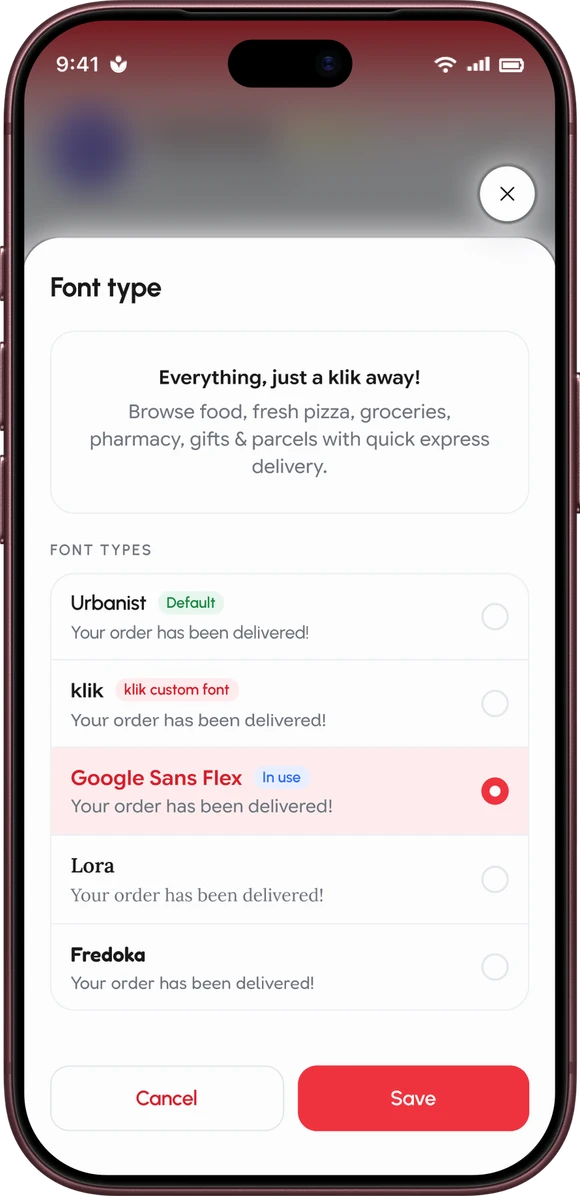
- In Display Settings, tap Font Type.
- At the top, a preview card shows klik's own text, "Everything, just a klik away!", so you can judge the font on real words.
- Below it, each font is listed with the same sample sentence, "Your order has been delivered!", written in that font.
- Tap the one you want. The preview changes straight away.
- Tap Save. Cancel leaves everything as it was.
Which font to try
- Urbanist is the default and the typeface of the klik design system. Start here if you are happy with how the app looks.
- klik is the app's own custom font, marked "klik custom font" in the list.
- Google Sans is a plain, open sans-serif.
- Lora has serifs, the small strokes at the ends of letters, like a printed book or newspaper. Some readers find long menus easier to follow in it.
- Fredoka is rounded and friendly, with heavier letters.
There is no right answer. Read a menu in two or three of them and keep the one your eyes like.
Change the text size, step by step
- In Display Settings, tap Font Size.
- Drag the slider to Small, Regular or Large. The preview text grows or shrinks as you move it.
- Tap Save.
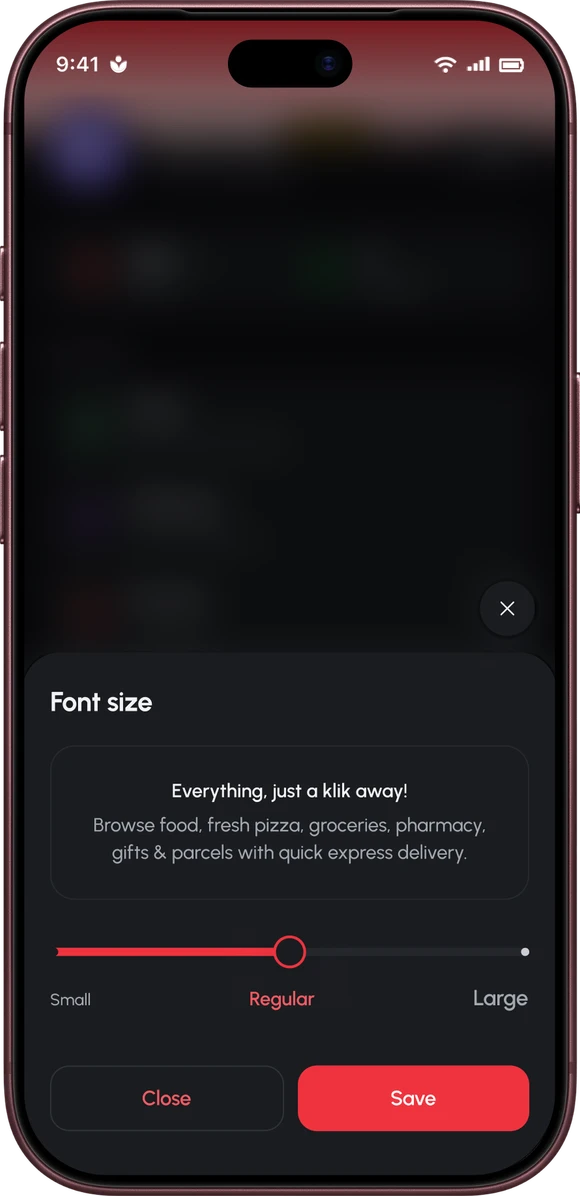
The app's text size works on top of your phone's own text size setting. If you have already turned up the text in your phone's settings, try Regular in klik first and move to Large only if you still need it.
Choose light, dark or System
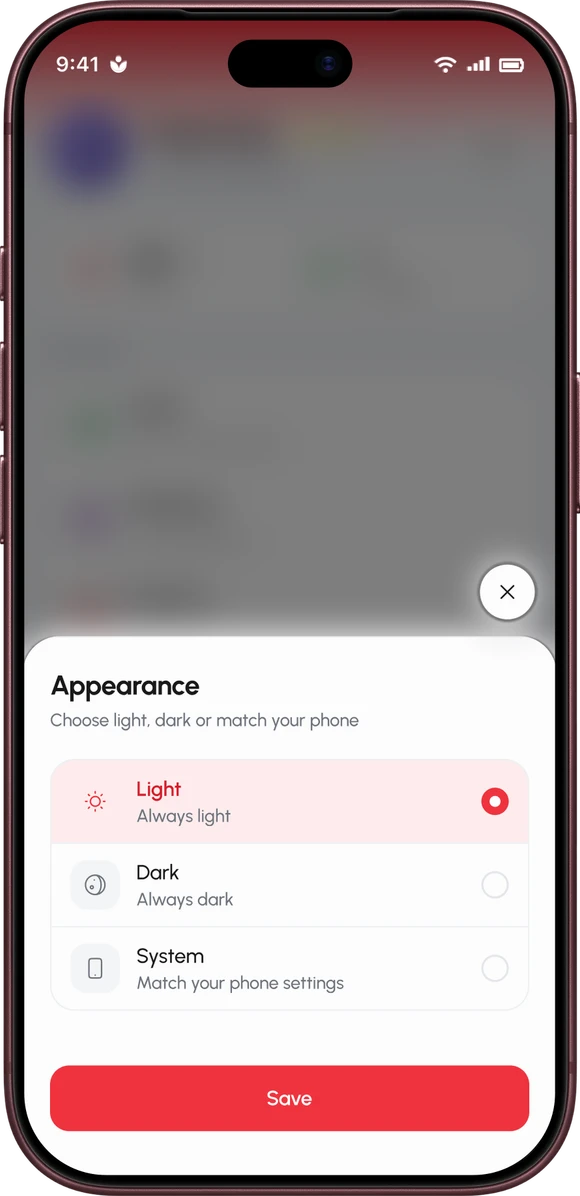
- In Display Settings, tap Appearance.
- Choose Light, Dark or System.
System means klik follows your phone: if the phone switches to dark mode in the evening, klik does too. Dark is easier on the eyes at night and in a dark room. Light is usually easier to read outdoors in bright sun, for example while you wait at the gate for the rider.
Your settings stay with you
klik keeps your font and text size on every screen, from the home page to the menu and checkout. The choice is saved on your phone: klik does not store your font or text size on its servers. klik 2.2 also supports screen readers throughout the app, for customers who listen rather than read.
Setting it up for someone else
If you are helping a parent or a grandparent order, set the app up on their phone once and they will not have to think about it again. Large text with Urbanist or Lora is a good place to start. Show them where the Display Settings row is, in case they want to change it later.
If reading a screen is hard whatever the settings, there is always the phone. Call 664 from a mobile between 08:00 and 21:00 and a klik dispatcher takes the order in Amharic or English. See ordering by phone.
To see everything else that arrived in this update, read the klik 2.2 release.
Quick answers
The short version, for anyone in a hurry.
How do I turn on dark mode in klik?
How do I make the text bigger in the klik app?
Which fonts can I use in klik?
Does klik follow my phone's dark mode?
Does klik store my font and text size choice?
Not on klik 2.2 yet? Get the klik app for iPhone or Android.

